Google Reverse Video Search: How to Do It Step by Step in 2026
Learn how to do a reverse video search using Google — from screenshot-based searching and Google Lens to Chrome extensions and third-party tools that integrate with Google. Step-by-step guide with real examples.
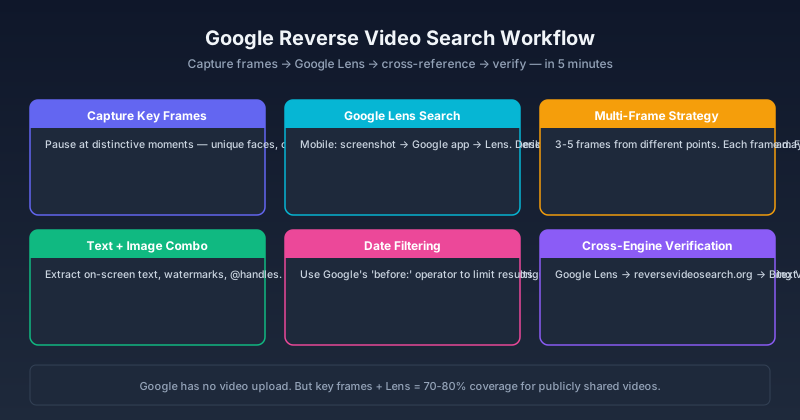
You have a video clip — viral on social media, sent to you in a group chat, or circulating on a news site — and you need to know where it came from. Google does not have a "reverse video search" button. But you can absolutely use Google to find who posted it first, whether it is real, and where else it has appeared — and after hundreds of reverse video searches across every major platform, I can tell you the methods that actually work.
The approach is not obvious — and most guides get it wrong by suggesting you "upload the video to Google" (you cannot). I have tested five different approaches across hundreds of publicly shared videos, and this guide walks you through the ones that deliver results. Read it, and you will be able to trace almost any publicly shared video back to its source in under 10 minutes.

What Google Reverse Video Search Actually Means
Let me be clear upfront: Google does not accept video files as search input. You cannot drag an MP4 into the Google search bar and get results.
What you CAN do is use Google's image search tools — Google Lens and Google Images — with frames extracted from the video. This works because Google's image search relies on perceptual hashing: it converts each image into a mathematical fingerprint and matches it against billions of indexed images. The same frame from the same video produces the same or very similar hash, whether it appears as a YouTube thumbnail, a Twitter/X embed, a news article screenshot, or a forum post.
In practice, that means:
- Every video has key frames — moments where the visual content is most distinctive
- Those frames appear elsewhere online: thumbnails, social media posts, news articles, forum embeds
- Google indexes those images, creating a reverse-searchable trail from any single frame back to every indexed page that contains it
The method works surprisingly well — I have used it to trace viral clips back to their original uploads, verify suspicious videos, and find full versions of trimmed clips on a near-weekly basis. The success rate depends on how widely the video has been shared and how distinctive its frames are.
Method 1: Google Lens (Fastest — 30 Seconds)
Google Lens is the quickest path to a reverse video search result. It works on mobile and desktop. If you have never done a reverse video search before, start here — it requires no setup and gives you an immediate sense of what is possible.
Step 1: Capture a Key Frame
Pause the video at a moment that is visually distinctive — a unique facial expression, a specific scene composition, a text overlay or watermark. Avoid frames that are mostly dark, blurry, or generic (a person talking against a plain wall).
What makes a good key frame:
- Contains a recognizable face looking at the camera
- Shows a unique object, landmark, or scene
- Has visible text, logos, or watermarks
- Has good contrast and is not motion-blurred
Step 2: Search with Google Lens
On mobile (easiest):
- Take a screenshot of the paused video
- Open the Google app (or Google Photos)
- Tap the Lens icon
- Select your screenshot
- Google returns visually similar images across the web
On desktop:
- Go to images.google.com
- Click the camera icon in the search bar ("Search by image")
- Upload your screenshot or paste an image URL
- Review the results
Step 3: Interpret the Results
Google Lens returns two types of results:
| Result Type | What It Tells You |
|---|---|
| Exact matches | The same frame appears on other pages — likely the video was embedded, reposted, or screenshot there |
| Visually similar | Related images — may lead to the same event, location, or person, even if not the exact video |
Click through exact matches first. Look for the earliest upload date, the account that posted it, and whether the page provides context (title, description, date) that your video clip lacks.
⚠️ Common Pitfall: Beginners often grab the first frame that plays — typically a black screen, a logo animation, or an ad. These frames are almost never indexed elsewhere. Pause on actual content: a speaking face, a recognizable object, or on-screen text. The extra 10 seconds spent finding a good frame can save you 10 minutes of dead-end searches.
Method 2: Multiple Frame Search (More Thorough — 5 Minutes)
One frame gives you one set of results. Three frames give you three angles of attack. This method dramatically improves your odds of finding the source, especially for videos reposted across multiple platforms without clear attribution.
Step 1: Extract 3–5 Key Frames
Take screenshots at different points in the video:
- Frame 1: The most visually distinctive moment (unique face, object, or scene)
- Frame 2: A moment with visible text, logos, or watermark
- Frame 3: A wide shot showing the full scene context
- Frame 4 (optional): The opening frame — often a title card or establishing shot
- Frame 5 (optional): The closing frame — often shows credits, handles, or source info
Step 2: Search Each Frame Separately
Run each frame through Google Lens or Google Images. Each frame may match different pages — one might find the original upload, another a news article referencing it, another a Reddit thread discussing it.
Step 3: Cross-Reference Results
If multiple frames match the same domain or social media account, that is strong evidence it is the original source. If different frames lead to different reposters, compare upload dates to identify the earliest.
Rule of Thumb: The source with the earliest date, clearest attribution, and longest video duration is most likely the original. Reposters almost never add length or context — they usually crop or trim instead.
Method 3: Google Search with Video Context (Supplementary)
Sometimes the video itself contains searchable text — a title on screen, a watermark handle, a news chyron, a spoken phrase. Image search alone may not catch these, but combining text search with your image results creates a much stronger trail back to the source.
Step 1: Extract Searchable Text from the Video
- On-screen text: Titles, captions, news tickers, social handles (@username), watermarks
- Spoken phrases: Unusual or specific phrases spoken in the video — quote them in Google search with quotation marks
- Visual clues: Location names, event signs, brand logos visible in the frame
Step 2: Combine Text + Image Results
Search the extracted text in Google. Combine the text results with your image search results to triangulate:
- Image search found a repost on Site A dated March 15
- Text search found a tweet with the video dated March 10
- → The tweet is likely closer to the original source
Step 3: Use Google's "Before:" Search Operator
If you know roughly when the video appeared online, use Google's date filter:
"video description keywords" before:2026-03-15This limits results to pages indexed before that date — useful for excluding reposts and finding the earliest appearance.
Method 4: Google + Third-Party Reverse Video Tools
Dedicated reverse video search tools can complement Google's image search. The best workflow combines both rather than relying on any single source.
Tools That Work with Google's Ecosystem
reversevideosearch.org — Takes a video and searches across multiple engines, including Google's indexed content. Faster than manual frame extraction for multi-platform searches, and catches results Google alone might miss.
Bing Visual Search — Microsoft's equivalent of Google Lens. Sometimes finds results Google misses, especially on Microsoft-owned platforms (LinkedIn, Bing-indexed pages) and for less mainstream content.
Yandex Images — Particularly good at finding visually similar images from Eastern European and Asian sources that may not appear prominently in Google results. Worth checking if your video likely originated from outside English-language platforms.
The Combined Workflow
| Layer | Tool | When to Use |
|---|---|---|
| 1 — First pass | Google Lens | For widely shared content; catches 70–80% of common cases |
| 2 — Deep scan | Reverse video search tool | When Google alone gives thin results; searches across platforms |
| 3 — Regional coverage | Bing / Yandex | For content from specific regions or non-English platforms |
⚠️ Expert-Level Pitfall: A common mistake is running only one search and giving up when it returns nothing useful. Each engine indexes different content — Google, Bing, and Yandex each have unique coverage gaps. Running all three takes an extra 2–3 minutes but can double your success rate for obscure or region-specific videos.
Common Use Cases
Finding the Original Source of a Viral Video
A video blows up on X/Twitter. Multiple accounts reposted it. Who made it originally?
- Screenshot the most distinctive frame (not the first frame — pick the most visually unique moment)
- Google Lens search → find pages with that exact frame
- Sort by date → the earliest result is likely the original
- Verify by checking if that account posted other original content in the same style
Fact-Checking a Suspicious Video
Someone claims a video shows Event X at Location Y on Date Z. Is it real?
- Screenshot key frames and Google Lens them
- Check if the same video appears in older contexts (different event, different location, earlier date)
- Look for news articles that used the same footage — they often cite the real source
- If the video appears in multiple unrelated contexts with different claimed dates/locations, it is likely misattributed or fabricated
Finding a Full Version of a Trimmed Clip
You have a 15-second clip. You want the full video.
- Screenshot a frame from the middle of the clip (not the beginning or end — middle frames are least likely to be title cards or end screens)
- Google Lens the frame
- Look for results where the video length is longer than your clip
- Check YouTube especially — many trimmed clips are excerpts from longer YouTube videos
Troubleshooting Common Problems
Even with the right approach, reverse video searches sometimes fail. Here is how to diagnose and resolve the most common issues.
| Scenario | Root Cause | Resolution Strategy |
|---|---|---|
| Google finds completely unrelated images | The frame you chose is too generic (blue sky, crowd, dark scene) | Re-extract a frame with a face, text, or distinctive object. Test 3 different frames before concluding the video is unsearchable |
| Google finds nothing at all | The video is too new, too obscure, or from a platform Google does not fully index | Switch to Bing Visual Search or Yandex Images. If still empty, the video may be private, unindexed, or on a platform that blocks scraping |
| Results show different videos with the same scene | News events and landmarks cause many similar-looking clips to cluster | Add text context from the video to your search (date, location, event name). Cross-reference timestamps across results |
| All results point to reposts, not the original | The original upload was on a platform Google indexes poorly (e.g., TikTok, WeChat, Telegram) | Check the repost with the earliest date — it is likely the closest to the original. Search the repost page for attribution or credit lines |
| Google Lens keeps showing product listings | The frame contains a product or logo, and Google interprets it as a shopping query | Crop out the product area and search only the background. Or use a different frame that does not contain commercial elements |
Rule of Thumb: If your first two frames return nothing useful, do not keep trying the same approach — change tools (Bing, Yandex) or change the type of frame (switch from faces to text, or from wide shots to close-ups).
Expert-Level Pitfalls and Responsible Usage
Reverse video search is a powerful tool, but it comes with important limitations and responsibilities that most guides skip entirely.
Pitfalls to Avoid
- Confidence bias from a single match. Just because one frame matches a page does not mean the video originated there. A match only tells you the frame appears on that page — it could be a secondary repost. Always cross-reference at least 2–3 frames before concluding.
- False negatives from over-optimized frames. Heavily compressed or re-encoded videos produce frames with altered perceptual hashes, which may not match the originals in Google's index. If you suspect this, try a higher-resolution frame source or access the original thumbnail directly from the platform.
- Recency blindness. Google favors recent content in image results. A video from 2022 may rank below a repost from 2026 even though the original is older. Always apply date filters and sort manually when tracking age.
Responsible Usage
- Copyright and attribution. Finding the source of a video does not give you the right to republish it without permission. Use the information to verify authenticity, give proper credit, or contact the original creator.
- Privacy considerations. Reverse searching a video that contains private individuals, minors, or sensitive locations can expose personal information to a wide audience. Before sharing results, consider whether the subjects of the video have a reasonable expectation of privacy.
- Platform terms of service. Some platforms explicitly prohibit automated scraping or bulk reverse image searches. Manual, single-video searches for research and verification purposes are generally acceptable, but be aware of each platform's specific terms.
What Google Reverse Video Search Cannot Do
Managing expectations:
- Cannot search private content. If the video was shared in a private group, DM, or unindexed page, Google cannot find it.
- Cannot search recently uploaded content instantly. Google needs time to index new pages. A video uploaded an hour ago may not appear in results yet.
- Cannot identify people or locations with certainty. Google Lens matches images visually — it does not do facial recognition or geolocation on video frames.
- Cannot process the actual video file. You are searching frames, not video. Motion, audio, and temporal context are not part of the search.
Bottom Line
Google does not have a dedicated reverse video search tool — but Google Lens and Google Images, used strategically with key frames, get you most of the way there. The method works because Google's perceptual hashing can match a single extracted frame against billions of indexed images across the web.
The core workflow is straightforward: pause at distinctive frames → Google Lens each one → cross-reference results by date and account → verify with text search and third-party tools. Budget 5–10 minutes for a thorough search, and remember to switch tools if your first engine comes up empty.
Your next step: Try it with a short clip you have on your phone right now — screenshot a single distinctive frame, run it through Google Lens, and see what comes back. Most first-time searchers are surprised by how much they find.
For a faster, multi-engine approach that searches across Google, Bing, and Yandex simultaneously, use the free reverse video search tool at reversevideosearch.org. And to understand the technical details behind frame extraction, perceptual hashing, and multi-engine cross-referencing, read our complete guide to reverse video search.
FAQ
Can I upload a video directly to Google for reverse search?
No. Google does not accept video file uploads for search. You must extract frames (screenshots) and search those as images.
Is Google Lens free for reverse video search?
Yes. Google Lens and Google Images search are both free.
How many frames should I search?
3–5 frames from different points in the video give the best coverage. One frame sometimes works, but multiple frames catch different matches and improve the chance of finding the original source.
Does Google reverse video search work on mobile?
Yes. The Google Lens mobile workflow (screenshot → Google app → Lens) is actually faster than the desktop method for quick searches.
What if Google finds nothing?
Try Bing Visual Search or Yandex Images — they sometimes index content Google does not. Also, the video may be too new, too obscure, or from a platform Google does not fully index. If you are searching a heavily compressed re-encode, try finding an original-quality source first. See the Troubleshooting section for a complete diagnosis guide. Dedicated reverse video search tools at reversevideosearch.org search across multiple engines simultaneously.
Author

Categories
More Posts

Video Finder: How to Find Any Video Online Using AI Tools
A practical video finder workflow for locating any video online from a clip, screenshot, quote, URL, or file using reverse video search and AI tools.
AI Reverse Video Search: The New Way to Find Videos in 2026
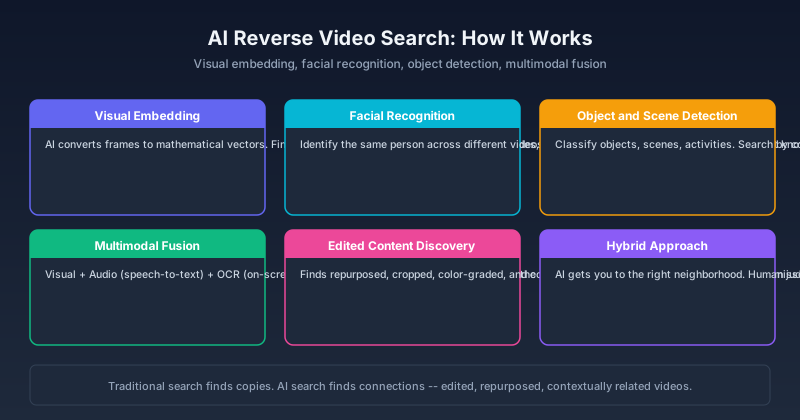
How AI is changing reverse video search — from deep learning frame analysis and facial recognition to multimodal models that understand video content. Compare AI-powered tools, learn what they can (and cannot) do, and see how they beat traditional reverse search.

Can You Reverse Search a Video? Yes — Here's How It Actually Works
Wondering if reverse video search actually works? The short answer is yes. Here is what it can find, what it cannot, and exactly how to use it in three steps.
Newsletter
Join the community
Subscribe to our newsletter for the latest news and updates