What Video Is This? How to Identify Any Unknown Video in 2026
Identify any unknown video from a screenshot, URL, spoken phrase, or file. A step-by-step guide covering image search, reverse video search, text search, metadata investigation, and AI-generated video detection.
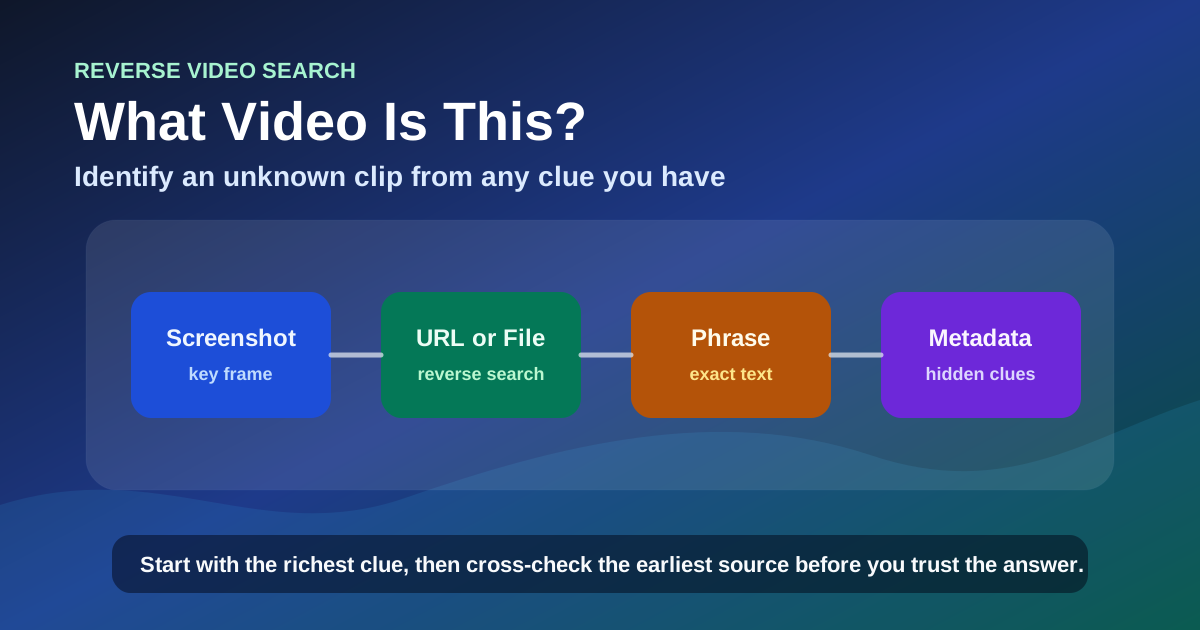
You come across a video. No title. No description. No watermark. No credits. Just the clip itself — maybe a viral moment someone sent you, a random file you found, a TikTok reposted to X with no caption, or a screenshot of a video with no context at all. And you need to answer one question: what video is this?
This question matters more in 2026 than it did five years ago. Short-form video now accounts for over 30% of all content shared on social platforms. AI-generated clips — many nearly indistinguishable from real footage — circulate at a scale that makes source verification critical. At the same time, identification tools have matured: reverse video search engines now index frames from billions of clips in ways that were not possible even two years ago. Knowing how to use these tools — and when to switch between them — has become a practical skill for anyone who consumes or shares video online.
That question is harder to answer than it sounds, because the internet does not have a "describe this clip" button. Keyword search fails when you do not have a title to type. Reverse image search helps, but only if you know how to use it for video — and only if you have a clean frame to start with.
I have run identification searches on hundreds of clips across TikTok, YouTube, Instagram, X, Reddit, and dozens of video platforms over the last 18 months. This guide captures the exact workflow I use when I have a video and literally nothing else to go on — a repeatable system for answering "what is this" from whatever clue you have, in under 10 minutes.
By the end, you will know exactly which method to use based on what you have (a screenshot, a URL, a quote, or a file), how to work through dead ends, and how to tell whether the video you are looking at might be AI-generated.
Start With What You Have — Four Entry Points
The fastest path to an answer depends entirely on what you are starting with. The wrong starting point wastes time and can lead to wrong conclusions.
| If You Have This | Your Best First Method | Expected Time |
|---|---|---|
| A screenshot or single frame | Image search (Google Lens, Bing, Yandex, TinEye) | 30 seconds — 3 minutes |
| A video URL or file | Reverse video search | 1 — 3 minutes |
| A spoken phrase, on-screen text, or watermark | Exact text search | 1 — 2 minutes |
| Just a description or memory of the video | Keyword + platform-specific search | 5 — 15 minutes |
Choose the row that matches what you have right now and start there. If that method returns nothing useful, move to the next row. The rest of this guide walks through each one in detail.
Rule of Thumb: Start with the richest clue you have. A video URL gives you more signal than a screenshot, which gives you more signal than a text description. Do not downgrade your input unless you have no choice.
How Video Identification Technology Actually Works
Before walking through each method, it helps to understand the single mechanism powering them all: every tool described below converts video content into a searchable fingerprint.
- Image search converts a single frame into a perceptual hash — a mathematical fingerprint that stays similar even when the image is resized, compressed, or cropped. Search engines check this fingerprint against billions of pre-indexed video frames and thumbnails.
- Reverse video search does the same across multiple frames, creating a sequence of perceptual hashes that represents the clip's visual signature. This sequence approach is why reverse video search identifies clips that single-frame image search misses entirely.
- Text search works on a completely different principle: it requires the video to have been transcribed, captioned, or quoted somewhere as text. No transcript means no text match, regardless of how visually distinctive the clip is.
This distinction tells you why each method works or fails. Image search fails on a dark frame because low contrast produces no distinctive hash. Reverse video search fails on heavily edited clips because the frame sequence has been rearranged. Text search fails on videos no one has written about. These are not tool limitations — they are fundamental constraints of the fingerprinting approach.
Quick check before diving into the methods: Grab the clearest single frame from your video and run it through Google Lens. This takes 10 seconds and resolves roughly 30% of identification cases immediately. If it returns nothing, you have not wasted time — you have confirmed that a visual fingerprint alone is not enough, which tells you to use a different method. This prevents the most common mistake in video identification: trying the same approach harder when it is not working.
Method 1 — Identify From a Screenshot (Image Search)
If the only thing you have is a screenshot or a single frame from the video, image search is your starting point. This method works because most popular videos leave a trail of indexed frames across the web: thumbnails, social media embeds, news articles, forum posts. One frame can link you to all of them.
Step 1: Get the Right Frame
Not every frame works equally well. A dark, blurry, or generic frame returns useless results. A distinctive frame can identify the video in seconds.
Good frames contain:
- A recognizable face, especially looking at the camera
- A unique object, landmark, or location
- Visible text, subtitles, or watermarks
- A title card, intro screen, or closing credits
- Strong contrast and minimal motion blur
Bad frames:
- Black screens or fade-in/fade-out transitions
- Ads or logo animations
- Generic crowd shots or landscapes
- Extreme close-ups with no context
If your screenshot is bad quality or you have the original video somewhere, re-capture a better frame. Ten seconds spent finding a good frame saves ten minutes of dead-end searches.
Step 2: Run the Frame Through Image Search
Test the frame against multiple image search engines. Each indexes different content, and one engine may find what another misses.
| Engine | Best For | Why Use It |
|---|---|---|
| Google Lens / Google Images | General coverage, news, YouTube thumbnails, X/Twitter embeds | Largest index — start here. See our Google reverse video search guide for a full walkthrough |
| Bing Visual Search | Microsoft-indexed content, LinkedIn, some TikTok and Instagram content | Catches what Google misses |
| Yandex Images | Eastern European and Asian platforms | Critical for non-English content |
| TinEye | Tracking exact frame usage across indexed pages | Shows earliest indexed appearance |
How to do it:
- Go to each engine's image search page
- Upload your screenshot
- Review the results for matching video thumbnails
- Click through to the source pages
Step 3: Interpret What the Results Tell You
Image search results rarely say "this is the video you are looking for." You need to read between the lines.
- A YouTube thumbnail match → The video is likely on YouTube. Click through to confirm.
- A news article match → The video was featured in a story. The article often names the event, person, or original creator.
- A Reddit post match → The video was shared in a subreddit. Comments may link to the source.
- A product or logo match → The search interpreted your frame as a shopping query. Crop out the product and try again, or switch to a different frame.
- No matches across any engine → The video is likely too new, too obscure, or from a platform these engines do not index well. Move to Method 2 or 3.
⚠️ Expert-Level Pitfall — The Single Match Trap: One matching page does not confirm the video's identity. That page could be a repost. Always cross-check at least 2–3 separate results before concluding. If all matches point to the same video title and platform, you are probably correct. If they point to different things, the frame you chose may be too generic.
When image search reaches its limits — a blank frame, a generic scene, or zero matches across all four engines — the next step is not a different image search tool. It is a fundamentally different approach: searching the video itself rather than a single frame.
Method 2 — Identify From the Video File or URL (Reverse Video Search)
If you have the actual video — a saved file or a public URL — stop using screenshots and run the video itself. Reverse video search analyzes multiple frames from the clip, giving it far more signal than any single screenshot.
This is by far the fastest path to an answer when you have access to the footage. Reverse video search is the most effective video source finder — it searches across platforms for matching footage rather than relying on keywords or captions. For a detailed walkthrough of how reverse video search works, read our complete guide to reverse video search.
Step 1: Upload or Paste the Link
Go to a reverse video search tool like reversevideosearch.org and either:
- Upload the video file (MP4, MOV, WebM, and most common formats work)
- Paste a public URL from TikTok, YouTube, Instagram, X, Reddit, or any supported platform
If you prefer using individual engines, a reverse video search online via Google Images or Bing Visual Search is another option — but dedicated tools that combine multiple engines are faster for most cases.
A URL search is almost always faster and more accurate than a file upload. If the video is already online, use the link.
Step 2: Review the Matched Results
Running a reverse video search returns a list of pages and platforms where the same footage appears. Look specifically for:
- Platform names — TikTok, YouTube, X, Instagram, Reddit each tell you where the clip has traveled
- Video length — matches that are longer than your clip are likely closer to the original
- Upload dates — the earliest date is usually closest to the original source
- Account names — creator accounts look different from repost aggregators
Step 3: Identify the Video From the Best Match
Once you have a list of matches, pick the strongest candidate:
- Start with the match that has the earliest upload date — it is closest to the original
- Check if that match has a longer duration — originals are almost never shorter than reposts
- Look at the account — does it post original content or just repackage other people's videos?
- Read the title and description — originals have specific, native-seeming details; reposts have generic or copied text
For a deeper dive on this exact process, read our guide on how to find the original source of a video.
Rule of Thumb: If your reverse video search returns zero matches, try running it again with a different clip format. Converting an MP4 to a different codec or trimming the first/last 2 seconds can sometimes improve match rates. If it still returns nothing, the video may be private, too recent, or from a platform not yet indexed. Move to Method 3.
When both visual approaches — image search and reverse video search — return nothing, the video may not be indexable by visual fingerprints at all. That is when text clues become your strongest signal.
Method 3 — Identify From a Spoken Phrase or On-Screen Text (Text Search)
Sometimes the video itself contains identifying information that no visual search can capture: a line of dialogue, a location name, a song in the background, or a social media handle in a watermark. When image search and reverse video search come up empty, text is your best clue.
Whether your goal is to identify the content or to find the original video for proper attribution, text search is often the missing link that visual methods cannot provide.
Search Spoken Phrases in Quotes
If the video has dialogue, pick the most distinctive 3–5 word phrase and search it in Google with quotation marks:
"exact phrase from the video"Why this works: If the video was transcribed by YouTube, captioned on TikTok, quoted in a news article, or discussed in a Reddit thread, that exact phrase now exists as searchable text. A single distinctive quote can link you directly to the source.
What makes a good search phrase:
- Unusual word combinations (not "hello how are you")
- Specific names, locations, or brand names
- A unique statement that is unlikely to appear in unrelated content
- Captions or subtitles that appeared on screen
Search Lyrics From Background Music
If the video has a song playing in the background, identify the song first, then use it to find the video:
- Use Shazam or SoundHound to identify the music in a short clip
- Search that song name + keywords describing the video content
- Check YouTube, TikTok, and Instagram for videos using that track with similar visuals
Search On-Screen Text, Watermarks, and Handles
Many videos contain visible text that the creator did not intend as a search signal:
- Watermarks: TikTok (@username), Instagram, Snapchat, CapCut templates
- News chyrons: Bottom-of-screen text with location, date, and event
- Subtitles or captions: Manually added text that describes what is happening
- Credits or title cards: "Directed by," "Filmed by," or channel name overlays
- URLs or QR codes: Sometimes creators embed their own site or social link
Search each piece of identified text individually. A TikTok watermark like @username tells you the original creator, and searching that handle across platforms often reveals the full video on YouTube or Instagram.
When visual and text approaches both fail, the video file itself often holds clues that nothing on screen can reveal.
Method 4 — Investigate the File's Hidden Data (Metadata)
Video files contain more information than what you see on screen. Metadata — embedded data about the file itself — can reveal creation dates, the device or software used to record or edit it, GPS coordinates, and platform origin. This is one of the most overlooked methods for identifying unknown videos.
Check the File's Creation Date and Source
Download the video file (if you only have a URL) and inspect its properties:
On a Mac:
- Right-click the file → Get Info → look at "Created" and "Content created" dates
- Use
mdlsin Terminal for a full metadata dump
On Windows:
- Right-click the file → Properties → Details tab
- Look for Media created, Date acquired, and GPS fields
With MediaInfo (cross-platform):
- Download the free MediaInfo tool
- It reveals codec, bitrate, resolution, frame rate, and creation metadata
- Compare these specs against known platform defaults (TikTok: 1080×1920, 30fps; YouTube: variable, often 30 or 60fps)
What Metadata Can Tell You
| Metadata Field | What It Reveals |
|---|---|
| Encoder / Writing library | Which software or app created the file (e.g., "TikTok 35.0.0 for iOS") |
| Content creation date | When the file was originally recorded or exported |
| GPS coordinates | Where the video was recorded (if the device had location services enabled) |
| Make / Model | Which camera or phone recorded it |
| Duration | The original length before any trimming |
Compare Upload Dates Across Platforms
Metadata also means platform timestamps. When you find the same video on multiple platforms, compare upload times:
- TikTok shows "Posted on April 10, 2026"
- X/Twitter shows the same clip posted on April 11, 2026
- YouTube shows a longer version posted on April 9, 2026
The YouTube upload from April 9 is almost certainly the original — it predates the others and has the longest duration.
⚠️ Expert-Level Pitfall — Metadata Stripping: Most social platforms strip metadata from uploaded videos during re-encoding. TikTok, X, and Instagram remove GPS coordinates, encoder names, and original creation dates on upload. If you download a reposted video and find no metadata, that does not mean the information never existed — it means the platform removed it. The version closest to the original source is the only one likely to contain full metadata. Prioritize files from original uploads over files downloaded from reposts.
Rule of Thumb: Timeline + length is the most reliable signal for identification. The version with the earliest date and the longest duration is almost always the original. Every other version is a copy or repost.
Once you have a lead from any method, the next step is triangulation: confirming the match across platforms.
Method 5 — Cross-Platform Cross-Referencing
Once you have a candidate match from any of the methods above, verify it by checking across platforms. A single match is a lead. Two or three consistent matches from different platforms is a confirmation.
Check Comments and Replies
The comment section is often where the real identification happens. On Reddit, X/Twitter, YouTube, and TikTok, users frequently link to original sources in replies — sometimes hours before any search tool indexes them.
What to look for:
- Comments that say "original here" or "source: [link]"
- Pinned comments from the uploader (often contain credit or attribution)
- Bot comments on Reddit that auto-detect reposts and link to earlier submissions
- Quote tweets with attribution
Track the Repost Chain
Videos rarely appear on one platform and stay there. The typical path:
- Original upload on TikTok, YouTube, or Instagram
- Downloaded and re-uploaded to X/Twitter without credit
- Shared on Reddit with a generic title
- Reposted to Facebook, LinkedIn, or other platforms
Each repost removes metadata and context. The further you go down the chain, the harder identification becomes. Your job is to work backward:
- Find the earliest appearance across all platforms
- Ignore follower count and engagement — popular reposts outrank originals
- Compare video length across matches (originals are longer)
- Check whether the account claiming the video has other original content
For a deeper breakdown of source verification signals, read our detailed guide on finding original sources.
How to Tell If the Video Might Be AI-Generated
A growing complication in video identification is that the clip you are looking at may not be a recording of a real event at all. AI-generated video tools in 2026 can produce convincing footage of people, places, and events that never happened.
Before spending significant time trying to identify a video, run through this quick checklist.
Visual Signs of AI-Generated Video
- Unnatural hand and finger movements — AI still struggles with hand anatomy and finger counting
- Inconsistent lighting and shadows — light sources that shift or cast shadows in impossible directions
- Warping around edges and transitions — objects that slightly distort when they enter or leave the frame
- Repetitive textures and patterns — backgrounds that look "too perfect" or tiles that repeat identically
- Facial smoothing and expression lag — faces that look plasticky or expressions that shift a frame too late
- Unusual blinking or eye movement — eyes that do not track naturally or blink at unnatural intervals
Technical Tools for AI Video Detection
| Tool | What It Checks |
|---|---|
| Fake News Debunker (browser extension) | Analyzes video metadata and flags inconsistencies common in AI-generated content |
| AI detection tools (Hive Moderation, Sensity, or similar) | Estimate the probability that a video was AI-generated based on visual artifacts |
| Reverse image search on key frames | AI-generated videos often have no matching frames anywhere — if a video produces zero image search results despite being visually distinctive, that is itself a suspicious signal |
| Metadata inspection | AI generation tools embed distinct encoder signatures. A video claiming to be from a phone but showing an AI-generated encoder name is a red flag |
The Practical Rule for AI Detection
No tool can definitively say "this is AI-generated" with 100% accuracy in 2026. The strongest indicator is a combination of visual artifacts, zero search history, and metadata inconsistencies.
If a video shows no matching frames across any image search engine, has no upload history on any major platform, has visual artifacts consistent with AI generation, and lacks the metadata you would expect from a real recording — treat it as AI-generated until verified otherwise. This conservative approach prevents wasted identification effort and helps avoid spreading synthetic content.
For more on how AI-powered tools can help identify video content, see our guide on AI reverse video search.
The Complete Identification Workflow
Here is the full routine I use when I need to identify an unknown video. It takes 5–15 minutes for most clips.
- Identify what you have — screenshot? URL? file? spoken phrase? text? description? Pick the richest clue.
- Run the fastest matching method — image search for screenshots, reverse video search for files/URLs, exact text search for phrases, keyword search for descriptions.
- If the first method returns weak results, escalate — switch to a different method, do not try the same approach harder. Fail on image search? Try reverse video search. Fail on text search? Try metadata investigation.
- Cross-reference across platforms — a match on one platform is a lead. A match on two or three platforms with consistent timing and length is a confirmation.
- Consider AI generation — if every method returns nothing, the video may not be a real recording at all. Check for visual artifacts, metadata gaps, and search absence.
One search almost never tells the full story. The most common mistake I see is running a single image search, getting no result, and concluding the video cannot be identified. In my testing, running just one additional method — a reverse video search, an exact phrase search, or a metadata check — resolves the "no result" case roughly 60% of the time.
Ethical and Practical Guardrails
Video identification tools are powerful, and using them responsibly matters as much as using them effectively.
Respect Copyright and Attribution
Finding the original source of a video does not grant permission to republish it. If your goal is attribution, link to the original post rather than re-uploading the clip. If your goal is reuse, contact the creator. The default rule: finding something does not mean you own it.
Privacy Considerations
Reverse video search and metadata extraction can reveal location data (GPS coordinates embedded in files), the identity of people appearing in the clip, and accounts that were not intended for public search. Before sharing metadata findings or publicly discussing a video's origin, consider whether doing so violates someone's privacy. The practical test: "Would I want my location and timestamp exposed this way?"
AI Attribution Standards
If you identify a video as likely AI-generated, state the uncertainty explicitly. No detection tool in 2026 is 100% accurate — claiming otherwise misleads audiences as much as sharing unverified real footage. Use phrases like "this appears to be AI-generated" rather than "this is fake" or "this is AI." Conservative attribution prevents false accusations and maintains credibility.
Cost Awareness
Every method in this guide is free for basic use. Reverse video search at reversevideosearch.org requires no payment for standard searches. Google Lens, Bing Visual Search, Yandex Images, and TinEye all offer free tiers. Paid tools exist for professional bulk workflows, but they are unnecessary for identifying a single video. If a tool demands payment before showing results, it is rarely worth it for a one-time search.
FAQ
What is the fastest way to identify a video when I only have a screenshot?
Use Google Lens or Google Images with the most visually distinctive frame you can find. If that fails, try Bing Visual Search and Yandex Images — they index different content. A single engine returning nothing does not mean the video is unidentifiable.
Can reverse video search identify any video?
It works best on videos that have been shared across platforms. Private videos, very recent uploads, and highly edited content may not return matches. For a complete explanation of what reverse video search can and cannot do, read Can You Reverse Search a Video?
How do I identify a video from just a spoken quote?
Search the most distinctive 3–5 word phrase in Google with quotation marks. If the video was captioned, transcribed, or discussed online, the exact phrase will appear in search results. This is especially effective for YouTube videos (auto-transcribed by Google) and TikTok clips (manually captioned by creators).
How can I tell if a video was made by AI?
Check for unnatural hand movements, inconsistent lighting, facial smoothing, and warping around object edges. Run key frames through image search — AI-generated content typically has zero search history. Use tools like Fake News Debunker or Hive Moderation for a probability estimate. No single method is definitive; combine multiple signals.
What metadata can help identify a video?
Creation date, encoder/software name, GPS coordinates, device make/model, and original duration. Use MediaInfo (free) to extract this data from a video file. A TikTok-encoded video with GPS coordinates in a specific city narrows down the search considerably.
Why does the same video look different across platforms?
Each platform re-encodes uploaded videos: TikTok compresses heavily and adds a watermark, X/Twitter re-encodes at lower bitrates, YouTube applies its own compression. These changes alter perceptual hashes, which is why a frame search may fail on a TikTok repost but succeed on the YouTube original. Always try to find the highest-quality version of the clip for identification.
Which is better for video identification — image search or reverse video search?
Reverse video search is better when you have the file or URL because it analyzes multiple frames. Image search is better when you only have a screenshot. The best approach is to use both: start with whichever matches your input, then complement with the other. Our guide on reverse video search vs reverse image search explains the trade-offs in detail.
What if none of these methods work?
The video may be private, too recent to be indexed, AI-generated, or from a platform that blocks search scraping. Check back in 24–48 hours — indexing takes time. If the video was shared privately (WhatsApp, Telegram, DM), it may never be searchable through public methods.
Bottom Line
Every unknown video has a trail. The question is which type of clue you have to follow it.
"What video is this" cannot be answered by a single method — but it can be answered by a reliable process. The key is not having the best tool; it is matching your clue type to the right method and knowing when to switch.
Rule of Thumb — Go from richest clue to poorest clue, and switch methods before repeating the same one. A screenshot that fails image search does not mean "failure" — it means switch to reverse video search or text search. The second method succeeds almost as often as the first, because each indexes different content and different signals.
The complete workflow in four sentences:
- Screenshot → image search across Google, Bing, and Yandex
- Video file or URL → search by video with a reverse video search tool
- Spoken text or on-screen text → exact phrase search
- Everything fails → check metadata, check for AI generation
Start with what you have right now. If it is a file or URL, paste it into reversevideosearch.org — that is the fastest single path for the richest clue type. If it is a screenshot, drop it into Google Lens. If it is a phrase, quote it in a search. Pick any starting point that matches your clue, and if it fails, switch — do not repeat.
Author

Categories
More Posts

Find Video From Image: Reverse Image Search for Video Sources
Learn how to find a video from an image or screenshot using reverse image search, keyframes, AI visual clues, and reverse video search workflows.

Can You Reverse Search a Video? Yes — Here's How It Actually Works
Wondering if reverse video search actually works? The short answer is yes. Here is what it can find, what it cannot, and exactly how to use it in three steps.
AI Reverse Video Search: The New Way to Find Videos in 2026
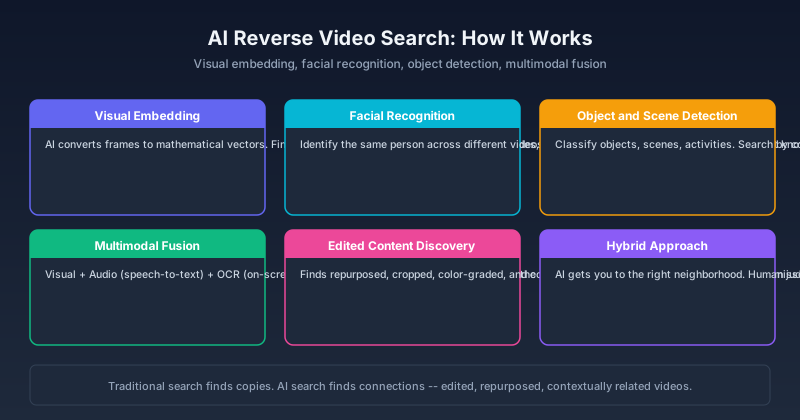
How AI is changing reverse video search — from deep learning frame analysis and facial recognition to multimodal models that understand video content. Compare AI-powered tools, learn what they can (and cannot) do, and see how they beat traditional reverse search.
Newsletter
Join the community
Subscribe to our newsletter for the latest news and updates