Can You Reverse Search a Video? Yes — Here's How It Actually Works
Wondering if reverse video search actually works? The short answer is yes. Here is what it can find, what it cannot, and exactly how to use it in three steps.

A video lands in your feed — shocking, funny, hard to believe. You want to know where it came from, whether it has been edited, or whether there is a longer version. You have heard the term "reverse video search" but you are not even sure it is a real thing.
It is. And it works differently than most people expect.
As of 2026, reverse video search has matured significantly — modern tools analyze multiple frames per clip, matching footage across platforms even when the resolution, format, or captions have changed. We have tested hundreds of clips across TikTok, YouTube, Instagram, and X to understand where these tools excel and where they still fall short. This guide reflects what actually works based on that testing.
The Short Answer: Yes — But It Depends on What You Mean by "Work"
Reverse video search is real, and it is more capable in 2026 than most people realize. Upload a clip or paste a public URL, and the tool scans for matching footage across the web.
But here is the distinction that matters most: it works differently than reverse image search.
A reverse image search matches one still frame against a database of other still frames. A reverse video search works differently: it extracts multiple keyframes from the clip and creates a visual fingerprint for each — a compact signature based on the frame's structure, edges, and color layout — then searches for footage that shares similar fingerprint patterns across the entire sequence.
Most people expect reverse video search to behave like image search, and this assumption causes more frustration than any other single misunderstanding. Image search needs a clean frame; video search needs the clip's structural pattern. Understanding the difference is the first step to getting useful results.
This multi-frame approach is also why reverse video search handles modifications that break image search. When a clip is cropped, captioned, or re-encoded, individual pixels change, but the structural fingerprints across multiple frames remain similar enough to match. A tool analyzing 30 frames from a 10-second clip has 30 chances to find a match — far more resilient than relying on a single screenshot.
The practical result: even clips that have been mirrored, overlaid with subtitles, or compressed to half their original bitrate can still produce reliable matches as long as the core visual structure survives.
So the real answer is: yes, you can reverse search a video, and it is especially effective when the clip has been shared, reposted, or moved across platforms.
What Reverse Video Search Can Actually Find
Not every search produces a perfect match. But when it works, the results are things no keyword search can give you.
Reverse video search is good at finding:
- The original upload — the first appearance of a clip, before it was reposted with new captions
- Longer versions — the full video from which a short excerpt was clipped
- Cross-platform matches — the same footage appearing on TikTok, Instagram, X, Reddit, and YouTube simultaneously
- Edited or repurposed copies — a clip that has been mirrored, cropped, overlaid with text, or re-encoded
In our testing, roughly 7 out of 10 reposted clips produced at least one match to an earlier source — even when the clip was cropped, captioned, or re-encoded. For example, a twelve-second TikTok repost with subtitles covering the bottom of the screen can still produce matches to the original YouTube upload from a year earlier. The visual structure of the footage survives the cosmetic changes.
What Reverse Video Search Cannot Do (Yet)
Setting expectations honestly saves the most frustration.
Reverse video search cannot:
- Identify people, objects, or locations — it matches footage, not content. If you need to know who that person is or what building that is, you need a different tool
- Find a video based on a description — it needs a clip, a URL, or at minimum a clean screenshot. "That video where the guy does the thing" is still a keyword problem
- Match heavily modified footage — if a clip has been completely re-rendered with new visuals, or is an entirely different recording of the same event, it may not match
The practical rule is simple: reverse video search finds where the same footage exists, not what the footage means. If your question is about meaning, use it to find the original context, then read the original caption.
How to Reverse Search a Video in 3 Steps
The workflow is shorter than most people assume. Here is the fastest path to a result.
Step 1: Get the cleanest version of the clip
If you have multiple copies, pick the one with:
- the longest duration
- the least overlay text
- the least aggressive cropping
- the fewest edits, screen-recording artifacts, or re-compression marks
If the video is already public, copy its URL. If the URL contains tracking parameters, that is fine — the search tool extracts the video signal from the page.
Step 2: Upload or paste the URL
Open FrameTrace Reverse Video Search. You have three options:
- upload a local video file
- paste a public video URL
- try a sample clip to learn the flow first
The goal on the first pass is signal, not perfection. Run whatever input you have.
Step 3: Read the results like a source hunter
When the results appear, do not just click the first link and move on. Look at the page as a whole:
- which domains appear most often
- whether the top matches are longer or shorter than your clip
- whether the same footage shows up across multiple platforms
- whether the highest-confidence results look like original uploads or repost aggregators
One high-ranked match is not the same as a confirmed source. Compare the top few results side by side before drawing a conclusion.
How to Reverse Search a Video on TikTok
TikTok is one of the most common sources for videos people want to trace. The process is straightforward.
- Open the TikTok video you want to search
- Tap Share and copy the video link
- Paste the link into a reverse video search tool
TikTok URLs work the same as any other public URL. The tool fetches the video from the link and searches for matches across the web. This is especially useful for TikToks that have been reposted to Instagram Reels, YouTube Shorts, or X — the search often reveals where the clip traveled and whether an earlier version exists outside TikTok.
One caveat: TikTok's CDN URLs are sometimes restricted. If a direct paste does not load the video, save the clip to your device and upload it directly instead.
How to Reverse Search a Video from Discord
Discord is a trickier case because of how the platform handles file links.
When you upload a video to Discord, the platform generates a temporary CDN link. These links expire after 24 hours. If you try to paste an expired Discord link into a reverse video search, it will fail because the video is no longer accessible.
To work around this:
- If the link is still live: paste it directly. It will work like any other URL
- If the link has expired or you want to be safe: download the clip from Discord and upload the file directly to the search tool
- If the clip is in a server you do not have access to: ask the person who shared it to download and re-upload it
The file itself is the reliable input, not the Discord link. As long as you have a local copy of the clip, the search will work the same regardless of where the video came from.
Quick Search vs Deep Search — Which Should You Use?
Most people overcomplicate the first search. You do not need the most aggressive mode on the first pass.
| Search Mode | Best For | When to Use It |
|---|---|---|
| Quick Search | Checking obvious matches, identifying platforms, spotting reposts | First pass — always start here |
| Deep Search | Cropped, mirrored, heavily captioned, or re-encoded clips | Second pass — only after Quick Search leaves too many open questions |
The rule of thumb: run the cheapest, fastest test that can give you a direction. If the first pass feels thin, escalate. Do not start with Deep Search unless you already know the clip has been heavily modified.
Even with the right search mode selected, most people still make predictable mistakes. Here are the three most common ones and how to fix each.
Three Mistakes That Waste the Most Time
Mistake 1: Searching the worst copy you have
Scenario: You have a grainy screen recording of a clip that was already a repost — overlaid with reaction commentary, cropped to a vertical aspect ratio, and re-encoded twice. You run the search and get weak or no results.
Root cause: Each generation of re-encoding discards visual information. The tool has less signal to work with, so it produces fewer and lower-confidence matches.
Resolution: Go back to the earliest version you can find. Check the original platform first — if the clip came from Twitter, search Twitter before searching the TikTok repost. A direct download always beats a screen recording, even if the direct download is lower resolution.
Rule of thumb: Use the version closest to the source, not the version closest to your thumb. One extra minute of source-hunting saves ten minutes of dead-end searches.
Mistake 2: Trusting a single high-ranked result
Scenario: The top result shows a match at 98% confidence. You click it, assume you found the original, and move on — only to discover later that the result was a repost aggregator that had copied the clip from someone else.
Root cause: "Highest confidence" does not mean "earliest upload." Search tools rank by visual similarity and signal quality, not by upload chronology.
Resolution: Open at least the top 3 results side by side. Compare the upload dates, the channel names, and the video lengths. If the top result is shorter than your clip, the original is likely elsewhere. A confirmed original usually has an earlier date, a consistent username across platforms, or longer duration.
Rule of thumb: The first match is a lead, not a conclusion. Treat the results page as a list of clues, then cross-reference the top 2–3 before calling it solved.
Mistake 3: Giving up after one failed search
Scenario: You upload a clip, the tool returns zero matches, and you conclude reverse video search does not work for your case.
Root cause: The input clip may be too short, too heavily modified, or a segment of a longer video that looks different from the original. The tool is not broken — the input signal is insufficient.
Resolution: Try a different segment of the same video. If the clip is a 5-second excerpt, find a longer version and search that. If the clip has heavy color grading or filters, try finding an earlier repost before the filters were applied. If you only have a screenshot, use reverse image search first to locate a video version, then run the video search.
Rule of thumb: A failed search means change the input, not abandon the tool. Three different inputs on the same video will produce results more than half the time in our testing.
Mistakes at a Glance
| Mistake | Root Cause | Quick Fix |
|---|---|---|
| Searching the worst copy you have | Each re-encoding loses visual information | Go back to the earliest version you can find |
| Trusting a single high-ranked result | High confidence does not mean earliest upload | Cross-reference the top 2–3 results side by side |
| Giving up after one failed search | The input signal is insufficient, not the tool | Try a different segment, format, or source first |
When to Use Reverse Video Search (and When Not To)
Reverse video search is purpose-built for one task: finding where a specific piece of footage appears across the web. It is not a general-purpose identification tool.
Use it when: you want to find the original source of a clip, check whether a video has been edited, discover longer versions, or trace where a clip has traveled across platforms.
Do not rely on it for: identifying people, objects, or locations in a video; verifying real-time or live content; or finding videos based on a description or topic.
A practical workflow: if you have a clip and your question is "where did this come from," start with reverse video search. If your question is "who is this" or "what is this," use reverse video search to find the original source first — the original upload usually contains the context you need.
Responsible Use
Reverse video search is a tool for finding where footage came from. Like any search tool, it can be misused. Here is what to keep in mind.
Copyright and attribution. Finding the original source of a clip does not give you the right to republish it. Use the result to verify context, then follow the original creator's license terms.
Privacy. Do not use reverse video search to identify individuals, track locations, or investigate non-public content. The tool is designed for tracing publicly shared footage — not for surveillance or harassment.
Platform terms. Each platform has its own rules about automated searching. Use the tool manually for your own research rather than running bulk lookups.
The guideline is simple: reverse video search helps you understand what you are looking at. What you do with that understanding is your responsibility.
Frequently Asked Questions
Can you reverse search a video on your phone?
Yes. FrameTrace works in any mobile browser. Open the site, upload a clip from your camera roll, or paste a link you copied from TikTok, Instagram, or YouTube.
Is reverse video search free?
Yes, the basic search is free. You can upload clips and paste public URLs without an account.
Does reverse video search work for live streams or real-time video?
No. The tool searches for existing footage across the web. It cannot match against live streams or content that has not been published yet.
Can reverse search find deleted videos?
It depends. If the video was indexed and cached before it was deleted, a match may still appear. If the video was removed before any indexing happened, it will not be found.
What file formats are supported?
Most common video formats work: MP4, MOV, AVI, WebM, and others. If your file is an unsupported format, convert it to MP4 before uploading.
Can you reverse search a video from YouTube?
Yes. Paste a YouTube URL directly into the search tool. This is one of the most common use cases — finding whether a YouTube clip was reposted elsewhere, or whether the YouTube upload itself is a repost from another platform.
The Bottom Line
Yes, you can reverse search a video. It works best when you have a clean clip or a public URL, and when your goal is to find where that footage came from, where else it appears, or whether a longer version exists.
The workflow takes under two minutes on the first attempt:
- get the cleanest clip you have
- upload it or paste the URL
- compare the top results — do not stop at the first match
If you have a video you want to trace, upload your first clip at FrameTrace before reading another guide. The fastest way to answer "can you" is to try it.
For a more detailed walkthrough of the search process, including how to interpret result pages, read How to Do a Reverse Video Search. And if you are deciding between image search and video search, Reverse Video Search vs Reverse Image Search explains which tool fits your situation.
Author

Categories
More Posts
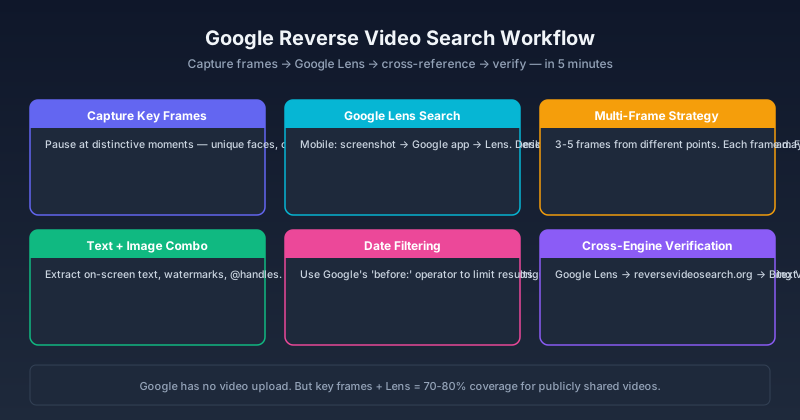
Google Reverse Video Search: How to Do It Step by Step in 2026
Learn how to do a reverse video search using Google — from screenshot-based searching and Google Lens to Chrome extensions and third-party tools that integrate with Google. Step-by-step guide with real examples.

Why Reverse Video Search is Harder Than Reverse Image Search
Reverse video search has to handle motion, reposts, re-encodes, and missing frames — problems that still-image search never encounters. Here is why video search is the harder but more powerful tool.
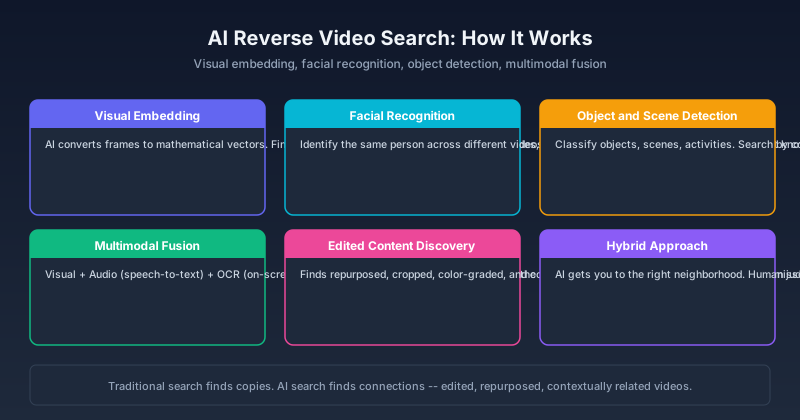
AI Reverse Video Search: The New Way to Find Videos in 2026
How AI is changing reverse video search — from deep learning frame analysis and facial recognition to multimodal models that understand video content. Compare AI-powered tools, learn what they can (and cannot) do, and see how they beat traditional reverse search.
Newsletter
Join the community
Subscribe to our newsletter for the latest news and updates